If you’re reading this, you’re in the bad place. You’ve already googled “Windows 11 taskbar icons missing,” and you’ve spent the last three hours performing the standard Microsoft-sanctioned rituals that never actually work.
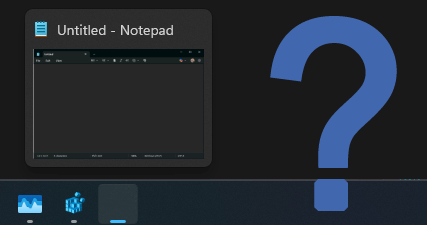
Certain icons just refuse to show up on taskbar. Regardless of whether they are pinned or just currently running.
And yes, like you I’ve tried it all ever since I “upgraded” my main rig to Windows 11. You know the drill:
- The Icon Cache Nuke: Deleting
IconCache.dbuntil your fingers bleed. - The Last Straw: Staring at a progress bar for
sfc /scannow,DISM, andchkdskwhile they tell you “No integrity violations found”, even though your taskbar clearly looks like a redacted CIA document.
Notice how it’s only the “Modern” apps? Notepad++, random EXEs, and Photoshop look fine, but Settings, Calculator, Notepad and the Clock have checked out and left behind empty, hollow squares.
Spoiler alert: Your system isn’t “corrupted.” It’s just being haunted by a legacy ghost. If (like me) you’re on a machine with years of arcane cruft, some ancient shell extension may be fighting the Windows 11 UWP icon pipeline over PNG rendering, and you’re caught in the crossfire.
The Problem: Legacy Bloat vs. Modern “Security”
Old-school EXEs usually have icons embedded in their binaries. The modern Windows shell stack (used by UWP apps) relies on a specific pipeline to render icons. If you ever installed software that added custom PNG thumbnail handlers back in 2016, you’ve got a conflict that the “Modern” shell can’t handle. It sees the hijack, panics, and gives you a blank square.
The Real Fix (The Registry Scalpel)
If you want to stop the madness and actually get your Clock, Calculator, and Settings icons back, forget about running sfc scans. Here’s what finally fixed it for me, in case anyone else struggles with the same issue:
Open the Registry Editor (Win + R, regedit).
- Navigate to HKEY_CLASSES_ROOT\.png\shellex
- Look for a GUID key like {E357FCCD-A995-4576-B01F-234630154E96}. This is an old shell extension for thumbnails.
- Right-click the shellex folder and rename it to shellexOLD or just nuke it.
- Restart explorer.exe.
By renaming that key, you stripped away the legacy shell extensions that were intercepting PNG rendering. You greenlit Windows 11 to use its native, internal logic to draw those UWP icons.
Thanks to Anonymous for finally pointing me in the right direction after months of looking into this on and off.
P.S. To the engineers at Microsoft: If your “Modern” resource loader can be defeated by a single registry key from 2016, maybe it’s time to stop adding “AI” to the Start menu and start making sure the frellin’ Clock works.