When you’re juggling three repos in VS Code and a dozen browser tabs, Alt+Tab becomes a game of Russian Roulette. You’re looking for your frontend, but you end up staring at a Slack notification or a half-finished email.
MacOS users get Native Tabs in VS Code. On Linux/Windows? You get one instance per workspace and a mess of groupings on your taskbar.
I didn’t want a new OS; I just wanted a quick way to visualize and switch in between open workspaces.
The Solution: A Focused Taskbar
The native KDE Plasma Task Manager is powerful. You can customize it infinitely, drop it into top panel, massage appearance until it has a “tab-like” feel, but it lacks one crucial feature: Application Filtering. By default, the taskbar will always show all and any open tasks.
I hacked together a version that lets you “pin” specific apps to a dedicated panel. This creates a “Dev Mode” bar in the corner of your screen that mimics the VS Code native tabs feeling by showing only your active development tools. And it’s not limited to VS Code. You can create “tabs” like this for any combination of apps. Want to show only your active terminals and browser? Only file managers? No problem. Just filter.
Who needs “native” tabs when you can get a custom taskbar?
- Only show whatever tasks you actually need for your workflow
- Filter by single instances like “code” or combinations like “zed,firefox”
- Minimal task bar without hover previews, audio bubbles, etc.
- Keep the “unrelated” junk (Slack, Spotify, Mail) in your main taskbar.
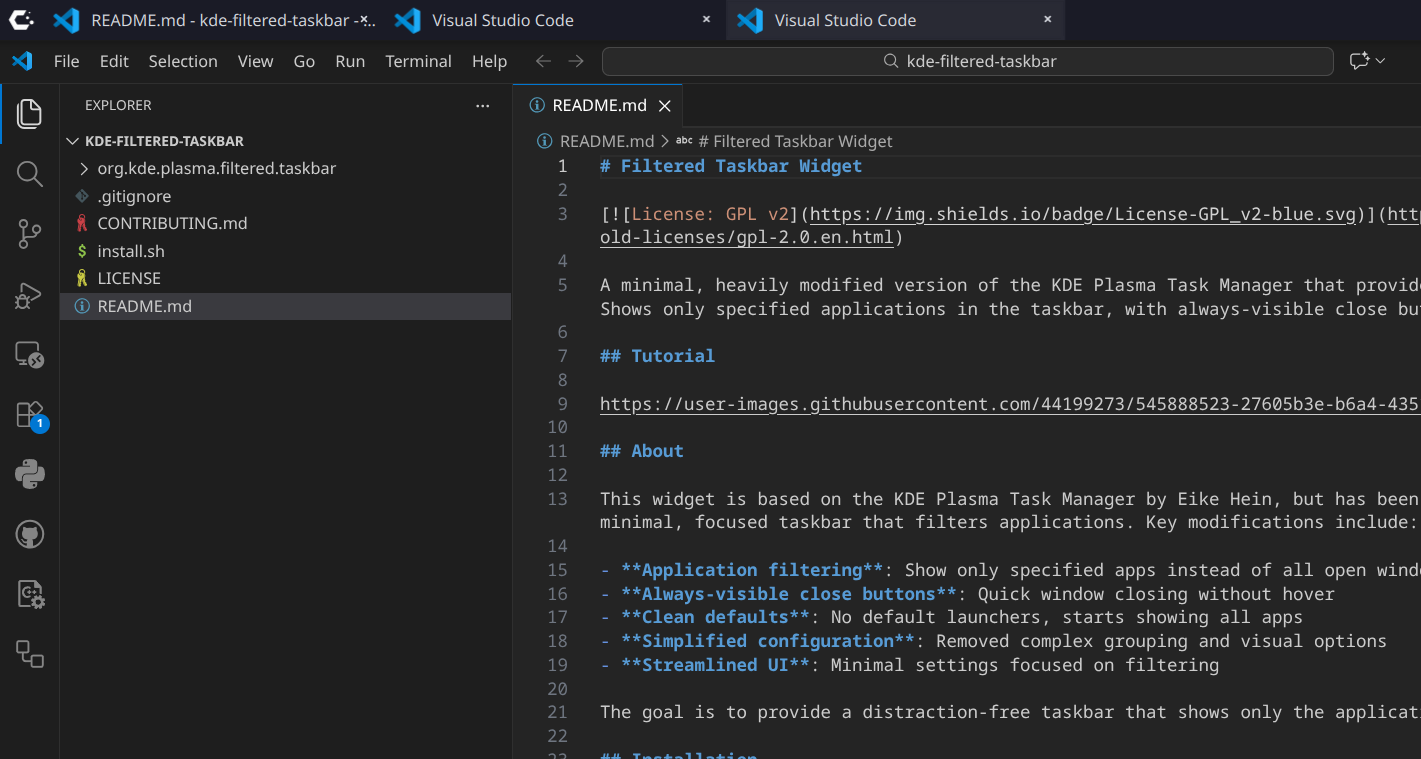
github.com/burninc0de/kde-filtered-taskbar
Quickstart
Here’s a quick way to get the plasmoid, copy it to your .local/share and restart plasma:
git clone https://github.com/burninc0de/kde-filtered-taskbar.gitAfter that, right-click any panel, click “Add Widgets,” and search for Filtered Taskbar.
cd kde-filtered-taskbar
./install.sh