
[drop_cap]L[/drop_cap]ast year, I moved to CachyOS on my laptop. I expected a different Kernel. I was ready to do some things differently. What I didn’t expect was a total disruption of my workflow. Not just on that Linux machine, but across any other machine I would touch afterward.
Once you get familiar with Linux’s terminal-first approach and you’ve tasted the speed of a GPU-accelerated terminal and a shell that doesn’t fight you, going back to a standard Windows setup just feels … wrong.
I tried to reverse-engineer that workflow on Windows. I tried WezTerm, Starship on Git Bash, and native TUIs. I failed. Between terminal escape codes screaming into my mouse movements and Windows eating my AltGr keys, I realized the truth: Native Windows and truly “terminal-first” workflows are like water and oil (unless you enjoy working with Powershell. But that’s a totally different story).
Elevating The Subsystem
Just when I was ready to fold and relegate my TUIs to my Arch rig, I was ready for one last Hallelujah: WSL2.
Yeah, I know. By default, WSL is not the best experience. It’s a superior OS running inside an inferior one, burdened by a translation layer designed for trouble. But after a day of chipping away at the friction, I found a stack that almost makes me forget that I’m on a Windows machine and not mashing away at Kitty on CachyOS.
Lobotomizing the WSL
By default, WSL is slow because it scans your entire Windows $PATH—thousands of folders of legacy garbage. The trick is to cut the cord in /etc/wsl.conf:
[interop]

appendWindowsPath = false
Setting this to false drastically reduces shell initialization time because WSL stops crawling through your Windows binaries.
To stop WSL from becoming a memory parasite, I also added some performance flags. First of all, we shutdown the virtual machine after an hour of idle, so it doesn’t keep hogging resources forever:
[wsl2]

# Automatically shut down the WSL VM after 1 hour of inactivity

vmIdleTimeout=3600000
Next, we add this tweak to our %USERPROFILE%\.wslconfig (that’s on the host system, not the WSL box) to make the RAM-usage a bit “smarter”:
[experimental]

# Give RAM back to Windows as soon as Linux stops using it

autoMemoryReclaim=gradual
GPU-Accelerated Goodness
I settled on Alacritty for the terminal. Unlike WezTerm it plays nice with my weird German keyboard layout, e.g. AltGr+Q = @ and Shift+7 = /, and delivers the raw speed I need for my TUI development workflows.
But first of all we need to get a cleaner start. Let’s edit alacritty.toml:
[terminal.shell]

program = "C:\\Windows\\System32\\wsl.exe"

args = ["-d", "Ubuntu", "--cd", "~", "fish", "--login"]
Launching with --cd ~ ensures we start in the Linux home directory, not the/mnt/c/ mount which is a slow and sad reminder that Linux is just a tenant on this system.
If the colors are off, because they probably are, we can explicitly request the full truecolor goodness like this:
[env]

TERM = "alacritty"

COLORTERM = "truecolor"
Once everything is done, you should get a crisp and clean terminal experience on WSL. Here’s a quick screenshot:
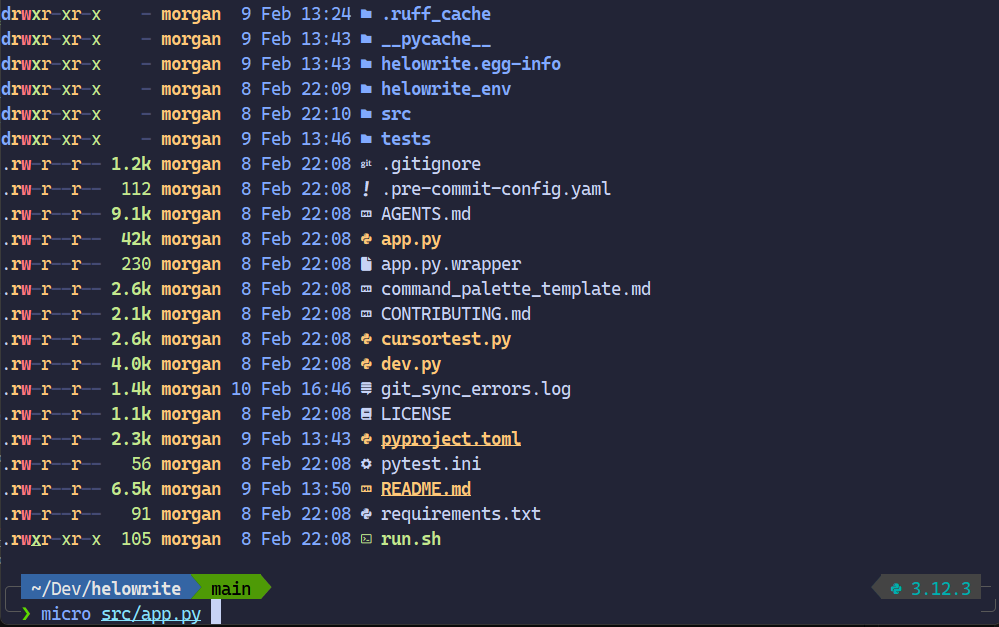
Theme is the ever-goated TokyoNight, font is Delugia (which has excellent icon support) and just overall pleasant to look at. Shell is Fish+Tide. For those sweet ls colors you see in the screenshot above I stole some aliases from the excellent CachyOS fish.config, most notably:
alias ls='eza -al --color=always --group-directories-first --icons'

alias la='eza -a --color=always --group-directories-first --icons'

alias ll='eza -l --color=always --group-directories-first --icons'

alias lt='eza -aT --color=always --group-directories-first --icons'

alias l.="eza -a | grep -e '^\.'"
Since we are replacing ls with eza you need to sudo apt install eza on Ubuntu.
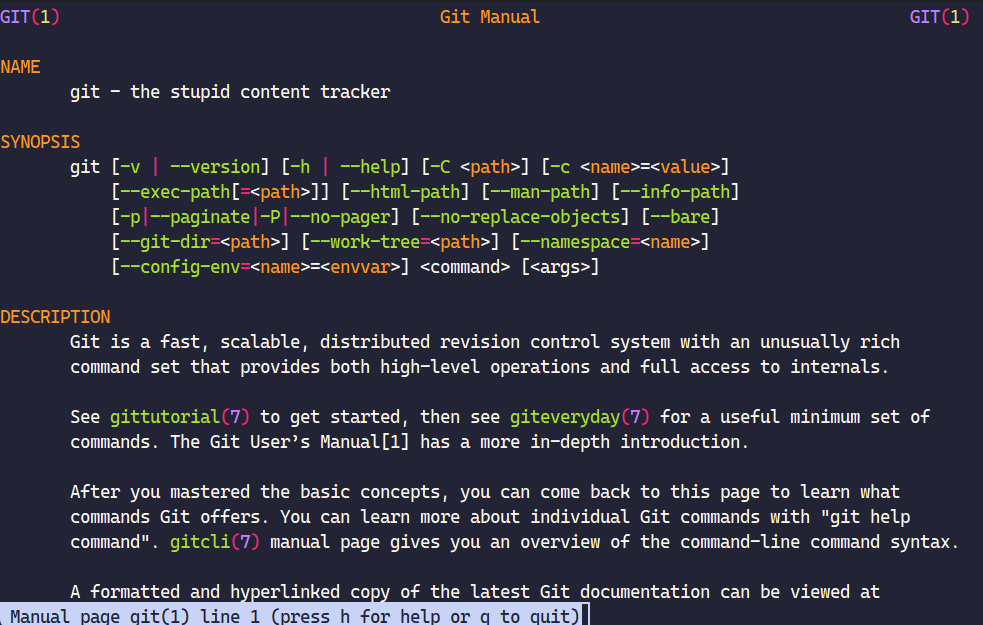
In the same vein, I also applied CachyOS’s replacement (slightly modified) for man so we can get actual nice-looking manuals:
set -x MANROFFOPT "-c"

set -x MANPAGER "sh -c 'col -bx | batcat -l man -p'"
For this to work you need sudo apt install bat on Ubuntu. And then typing man git will give you something like this:
Fixing Shell Colors, Path and Browser on WSL
If for whatever reason you get the “muddy color” problem where WSL doesn’t recognize Alacritty’s capabilities, you can force it in config.fish:
# Force Alacritty identity and TrueColor

set -gx TERM alacritty

set -gx COLORTERM truecolor
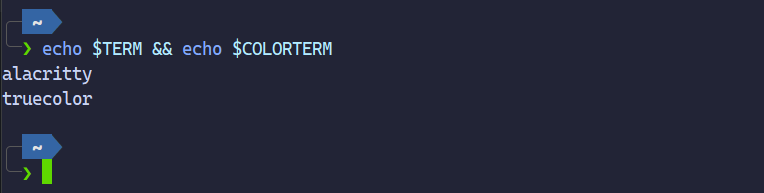
Once everything is set correctly $TERM and $COLORTEM should return the correct values:
The Bottom Line
By effectively decoupling WSL from Windows you can genuinely improve performance and make it feel a lot more like a native Linux environment. Add a modern terminal like Alacritty with truecolor support, a user-friendly shell like Fish and you’re officially on your way to making the terminal-first workflow on Windows significantly suck less more palatable.
Since I’ve been doing lots of terminal-centric work lately, I can now seamlessly switch between my Linux and Windows rig. Same look, same commands, same muscle memory. And when I launch Alacritty now and start bashing away, it almost feels like Linux is no subsystem at all, but the dominant driver.
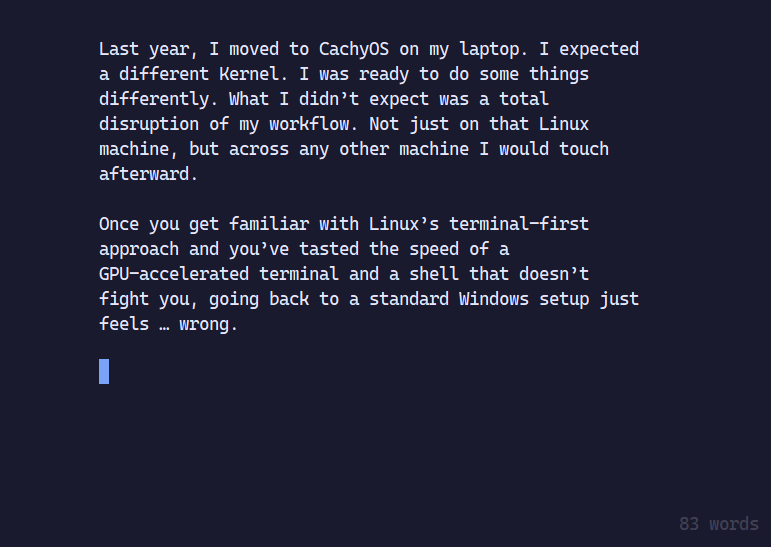
Last but not least, to top off the TerminalCeption, here’s a screenshot of me writing the draft for this post in HeloWrite on the very stack (WSL-Alacritty-Fish) described in thist post:
UPDATE: once I had all of this working, I deleted the whole Ubuntu WSL instance and replaced it with a proper ArchLinux WSL install. Look and feel are the same, but using pacman and AUR on Windows is just so much fun. Almost a sacrilege. Even getting native Windows NVIDIA drivers passed through to CUDA-enabled FastWhisper on this Arch box just works.
Whodathunk.
–